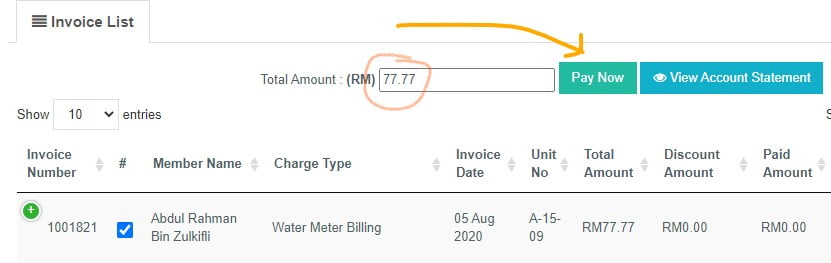
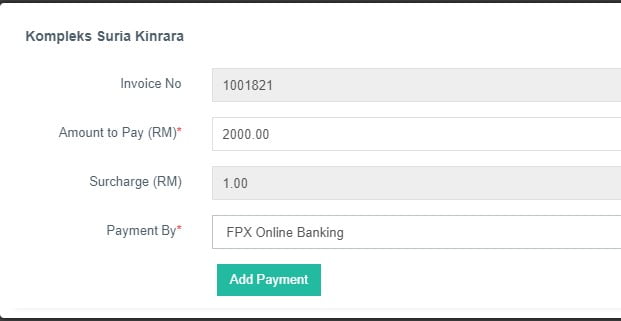
Yes, you can make advance payment to your invoice.
- Click on invoice that you want to pay.

- Insert your desire amount (advance), choose payment method and click Add Payment

Yes, tenant can see and pay any invoices and bills in owner's unit.
- Login to ARMS2U

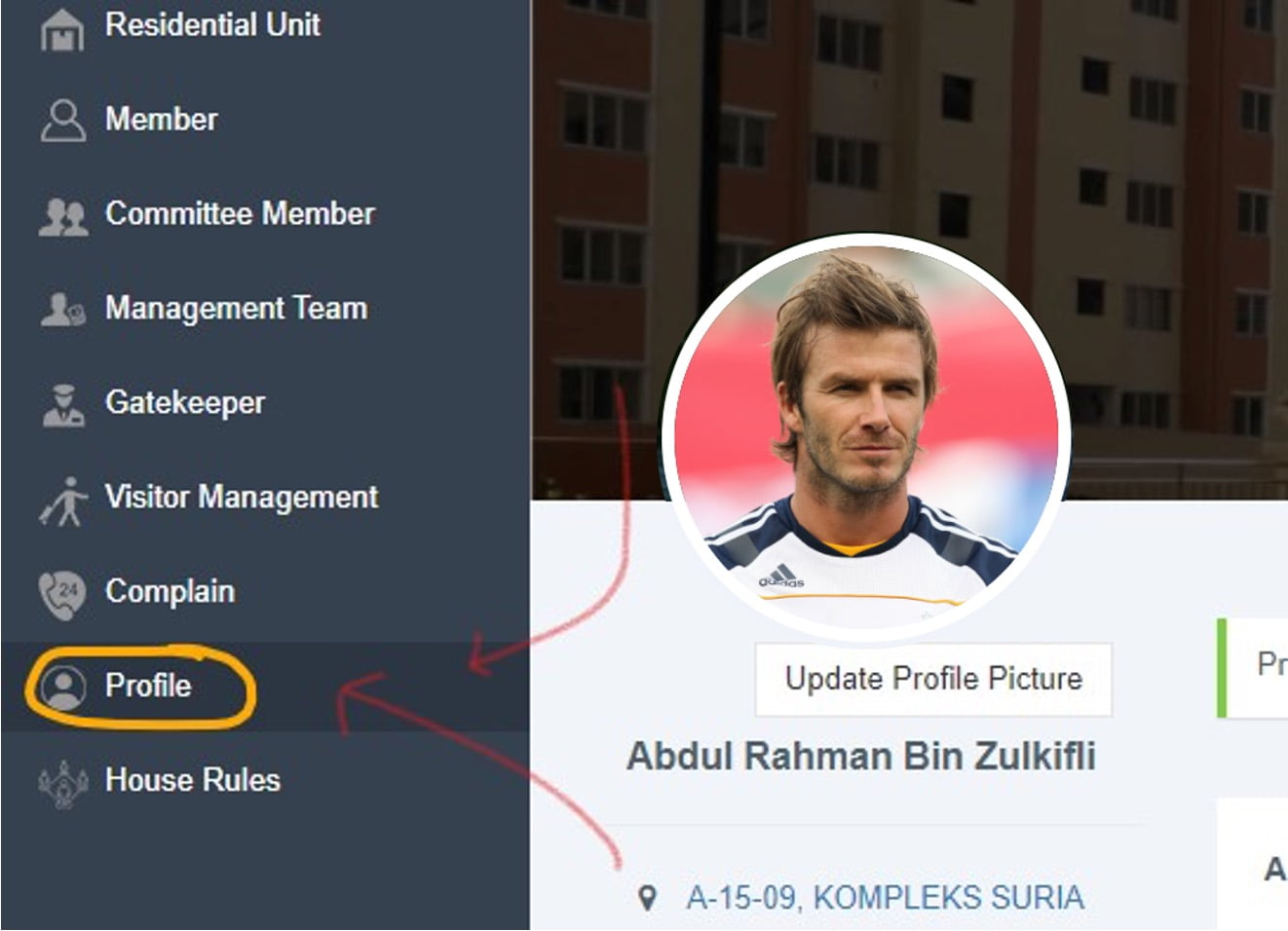
- Go to "Profile" menu

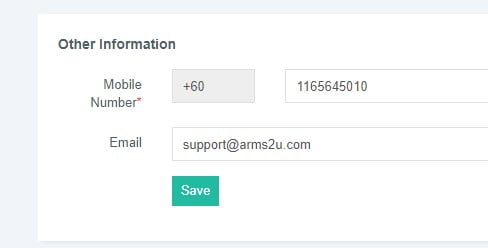
- Insert updated phone number or email address.

- Click Save
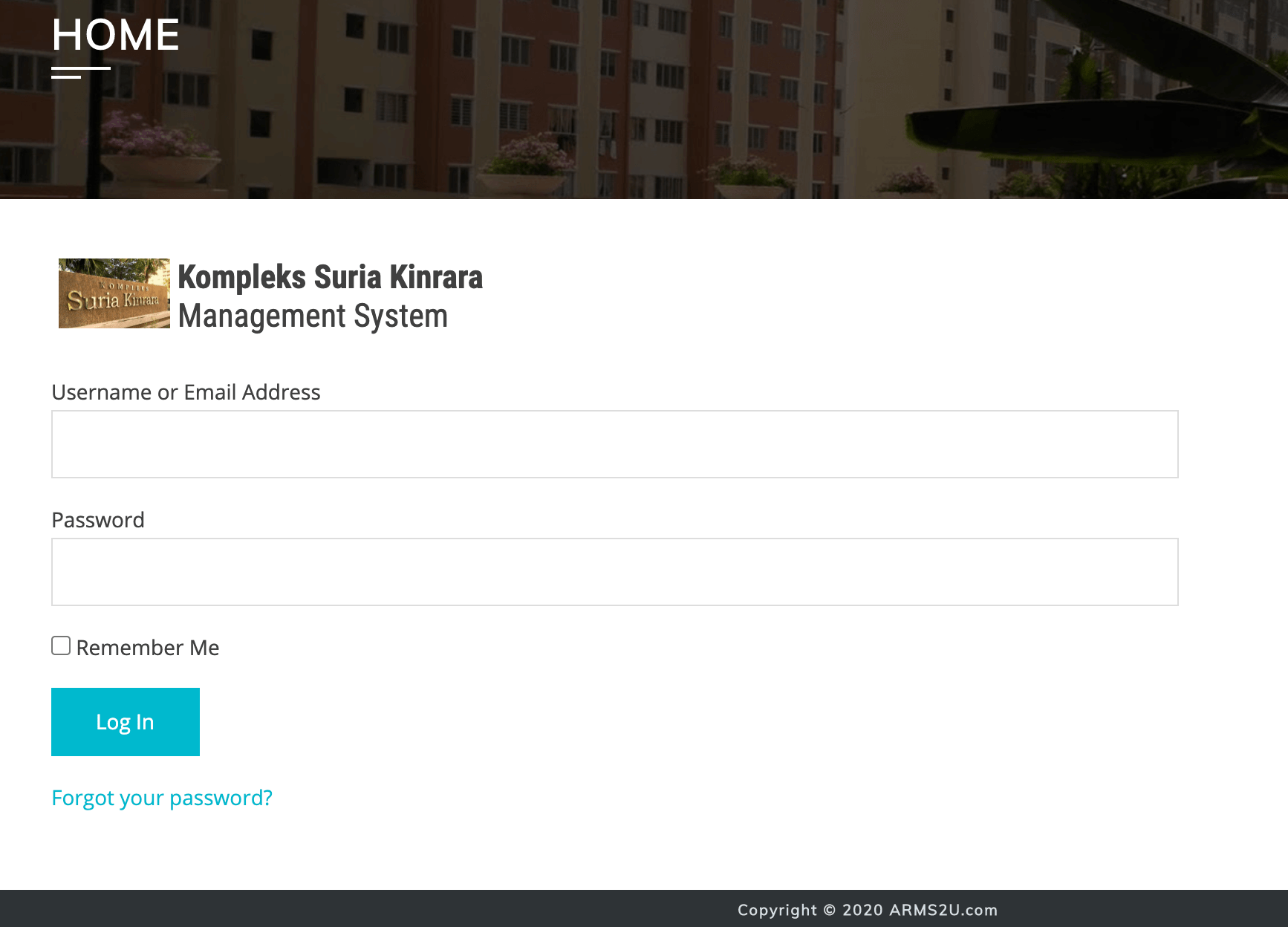
- Login to ARMS2U System

- Go to "Profile" menu
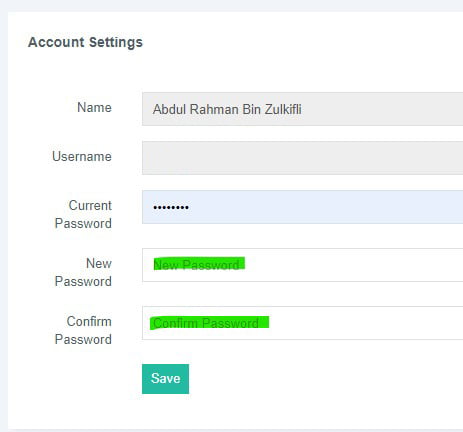
- Type current password and insert new password.

- Click Save
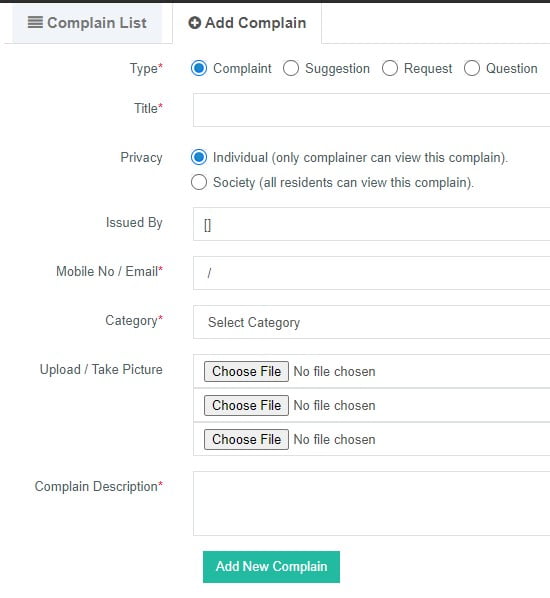
- Login to ARMS2U
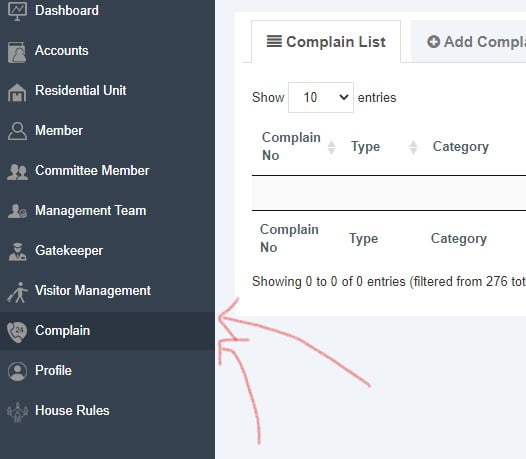
- Go to menu and click on "Complain"

- Click "Add Complain"

- Fill up all details and click "Add New Complain".
- Login to ARMS2U
- Go to "Accounts"

- Tick any invoice that you want to pay

- Click "Pay Now"
- Choose "Payment method" and click "Add Payment"
- Choose bank and click Pay.

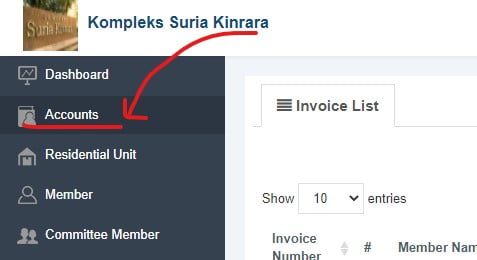
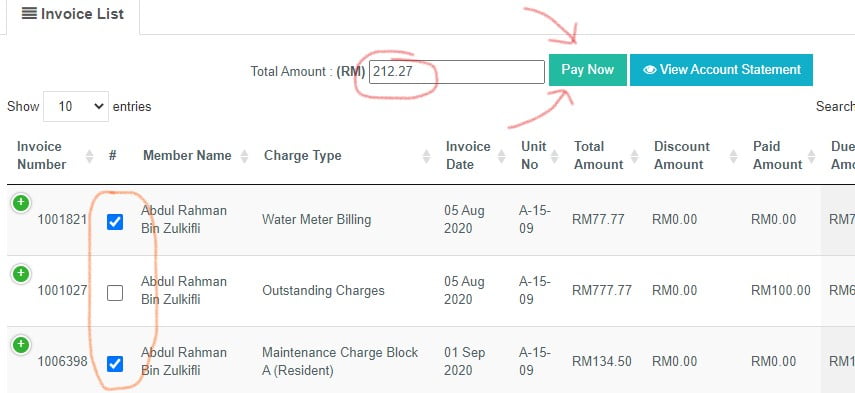
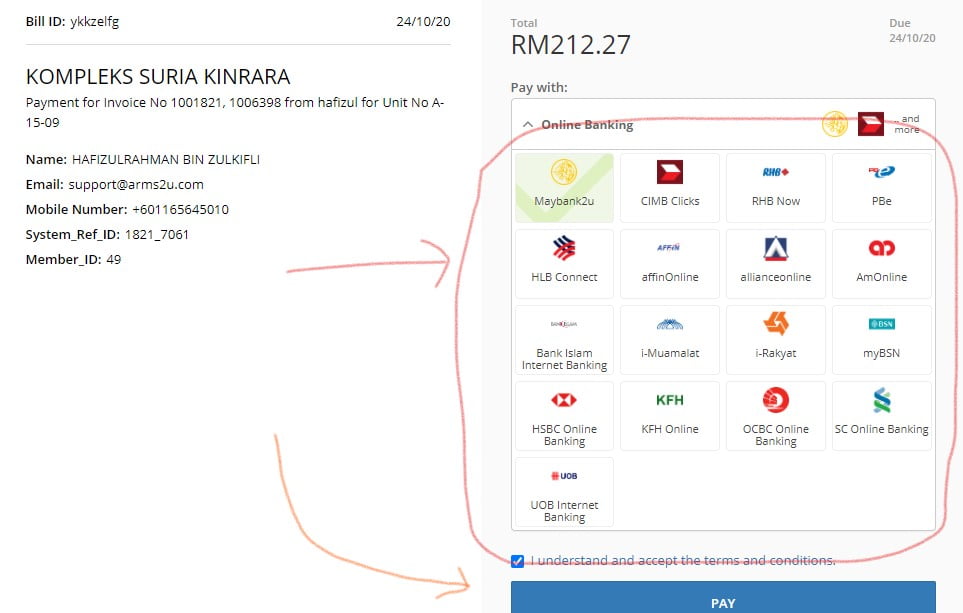
- Login to ARMS2U
- Go to "Complaint" menu
- Empty/delete any text in "Search" field.

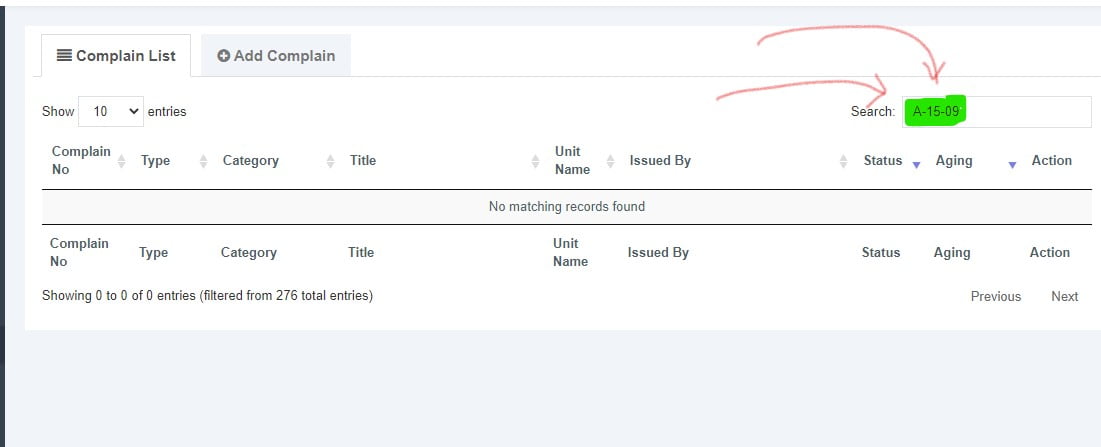
- Login to ARMS2U
- Click on "Accounts"
- Click on "+" button on any invoices that already Fully Paid or Partially Paid.

- Click "View Payment Receipt"

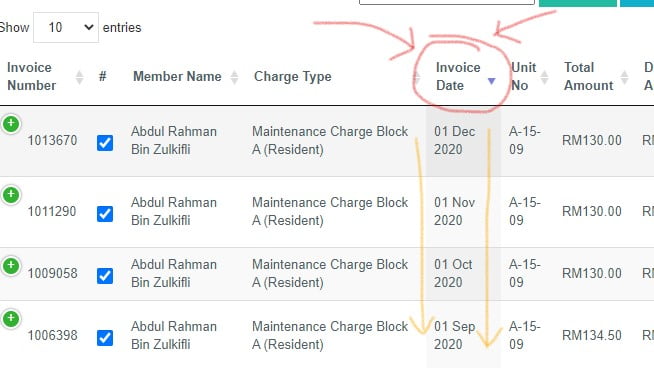
- Login to ARMS2U
- Click on "Accounts"
- Click on "Invoice Date" and system will sort it descending. The latest invoice will be on top.

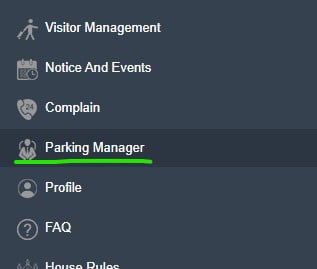
- Login to ARMS2u System
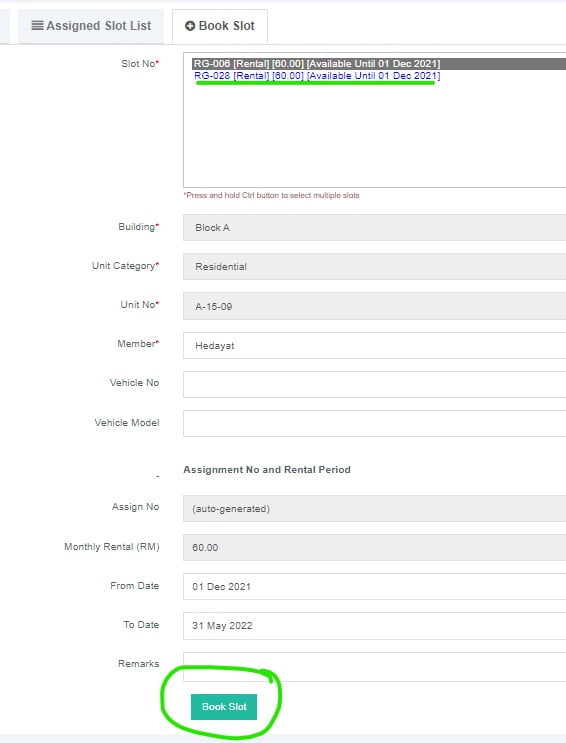
- Choose Parking Module on the menu

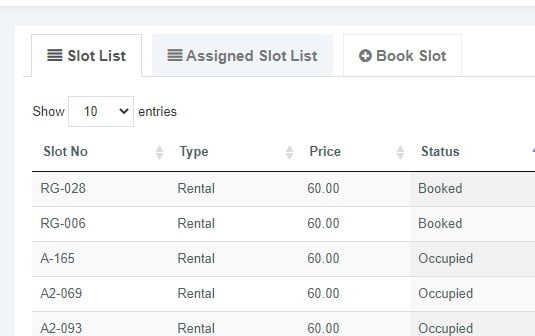
- You can see Slot List, and to book, click "Book Slot"

- Choose the slot available, and fill in the form, and click Book Slot.
- Please pay invoices before 24 hours or your parking slot booking will be cancel.

- Multiple unit module is only available for Owner.
- If you are owner for multiple unit, please register as Owner for every unit and make sure IC number and email are SAME on every unit you own.
- Once your account activated, you can login to ARMS2u and see this dialog box.
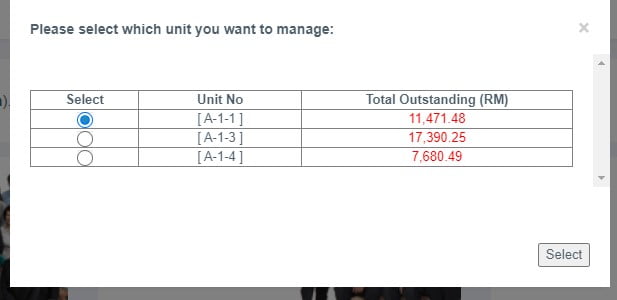 4. Choose your unit to manage and click "Select"
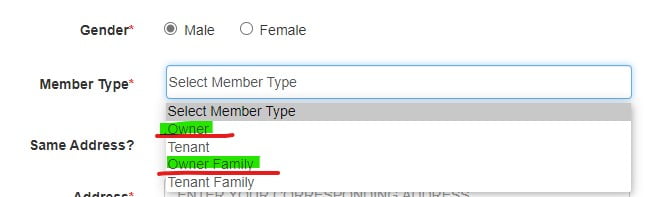
Yes, you can either register as Owner using their own personal details or register as yourselves as family member in registration form. ([Register Here])
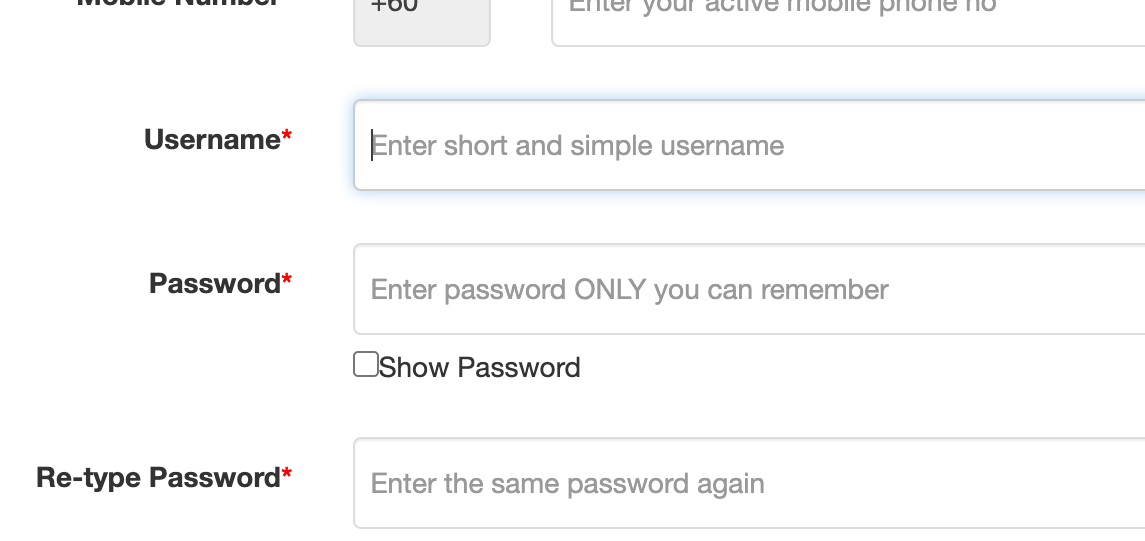
- You need to register every unit you rent using the same email but different username.
- You can login using your username for each unit you rent
No, Owner of Commercial unit needs to register on Ground "G" unit only.Tenants, in other case, need to register "G" or "1F" respectively or both if tenant is renting both units.
For bank transfer or any other payment outside ARMS2U, you need to email the proof of payment (receipt) to management office or accountant / treasurer who manages your residential finance for verification.Payment will be updated in 3 to 5 business days.
Please allow 1 hour for system to verify the information in registration form.You can try login to ARMS2U after 1 hour . If you still having issue to login, please email to support@arms2u.com and mentioned these info
- Unit Name
- Full Name
- Username
- Handphone Number
Yes, you can register two or more units using the same email address but you need to register using different username.
Q: Who needs to scan the QR code?
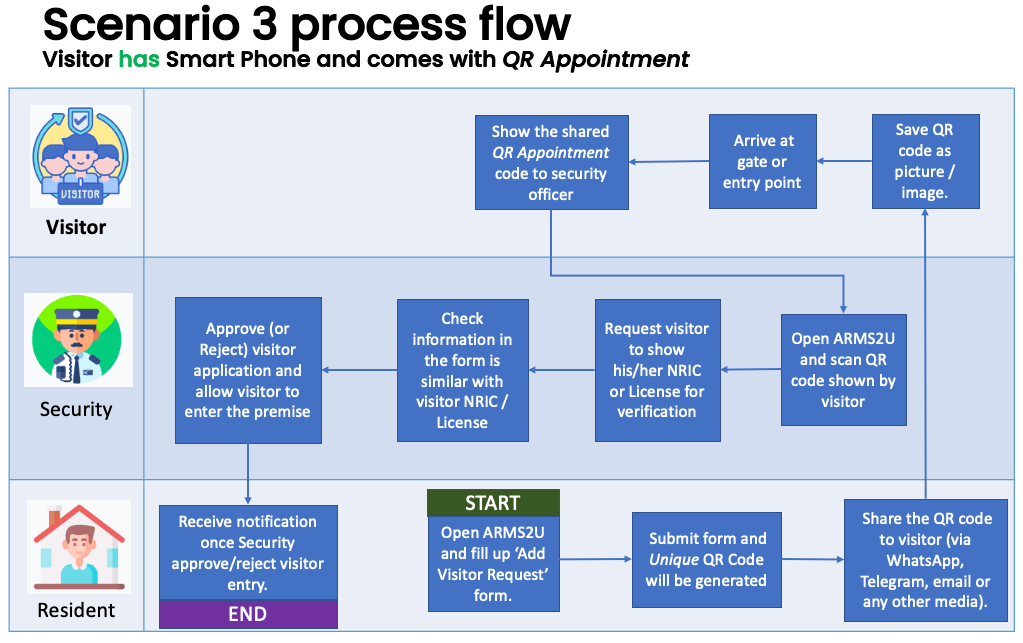
A: The QR code needs to be scanned by visitors during their entry. The specific QR code to be scanned depends on the scenario: 'Generic' QR code for ad-hoc visitors without appointments and 'Unique' QR appointment QR code for visitors with appointments shared by residents.
Q: Who needs to fill up the form?
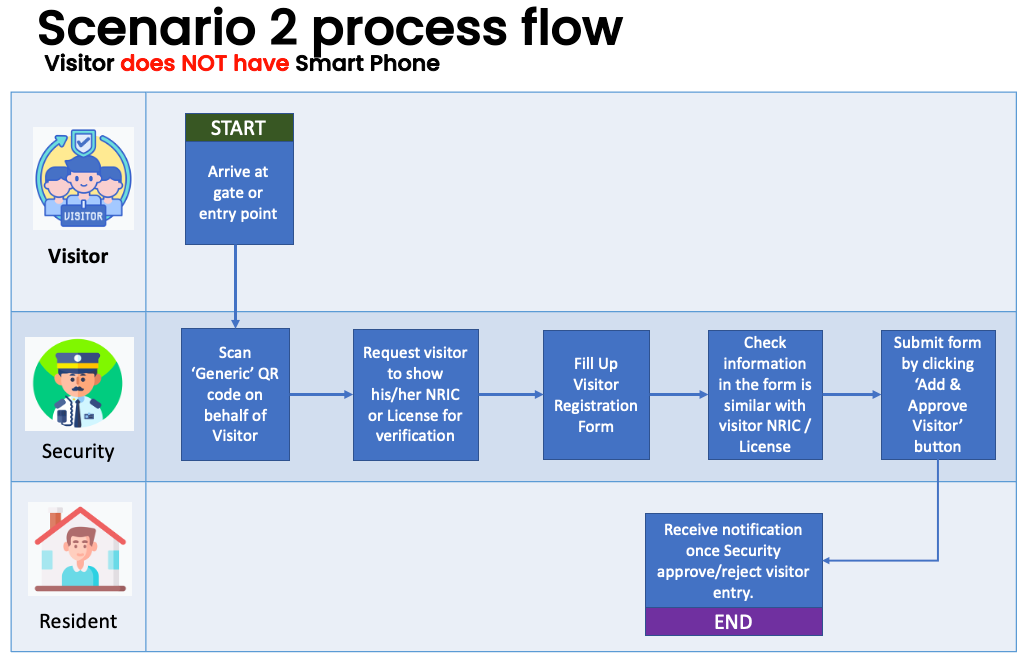
A: For ad-hoc visitors without smartphones or experiencing smartphone issues, the security personnel will fill up the form on their behalf during entry.
Q: Can visitors without smartphones or appointments access the premises?
A: Yes, visitors without smartphones or appointments can still access the premises. In such cases, the security personnel will assist them by scanning a 'Generic' QR code during entry and filling up the necessary form.
Q: What happens if a visitor has an appointment but doesn't have a smartphone?
A: If a visitor has an appointment but doesn't have a smartphone, the security personnel will verify the appointment details manually. The visitor's profile will not be auto-loaded, and the security personnel will fill up the form on their behalf.
Q: How does the QR entry system work for subsequent visits?
A: For subsequent visits, the system will automatically detect the visitor's profile during scanning if they use the same phone as their previous visit. This eliminates the need for filling up the form repeatedly, providing a quicker and more convenient check-in process.
Q: What if the visitor's smartphone is lost or replaced?
A: If a visitor's smartphone is lost or replaced, they will need to scan the QR code as a first-time visitor again. The system will treat it as a new profile, and the visitor will need to fill up the form during entry. Q: Can residents or authorized personnel access the premises using the QR entry system?A: The QR entry system is primarily designed for visitor registration and access. Below is the step for visitor using Smart Phone and comes with QR Appointment and to register in advance.
A: The QR code needs to be scanned by visitors during their entry. The specific QR code to be scanned depends on the scenario: 'Generic' QR code for ad-hoc visitors without appointments and 'Unique' QR appointment QR code for visitors with appointments shared by residents.
Q: Who needs to fill up the form?
A: For ad-hoc visitors without smartphones or experiencing smartphone issues, the security personnel will fill up the form on their behalf during entry.
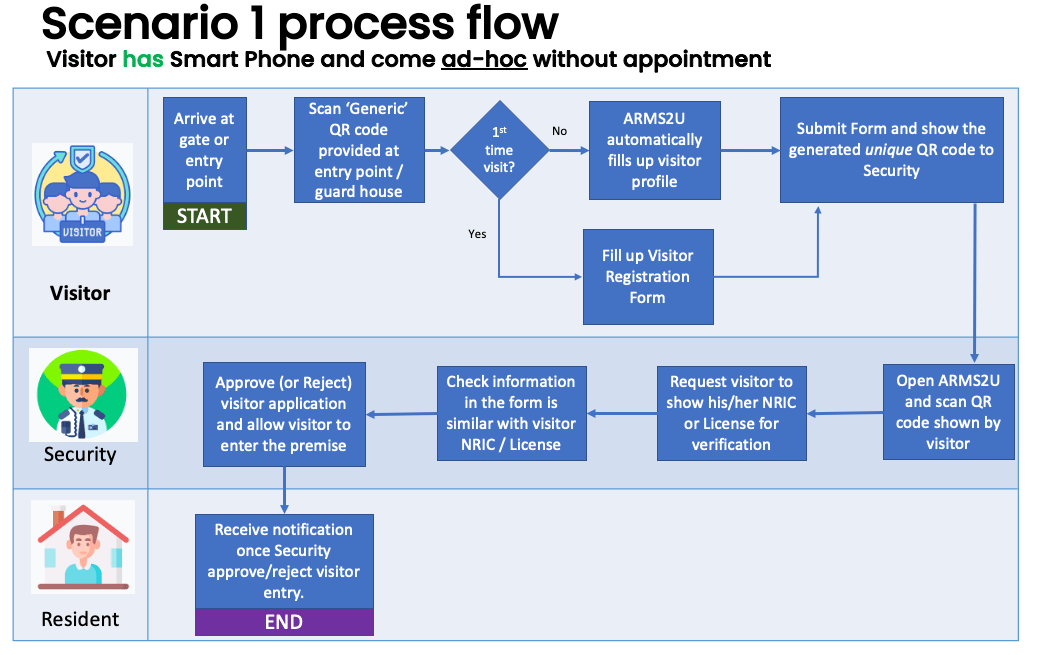
- For visitors with smartphones, the form is filled up by the visitor during their first-time visit. The system will automatically detect their profile during subsequent visits, provided they use the same phone.
Q: Can visitors without smartphones or appointments access the premises?
A: Yes, visitors without smartphones or appointments can still access the premises. In such cases, the security personnel will assist them by scanning a 'Generic' QR code during entry and filling up the necessary form.
Q: What happens if a visitor has an appointment but doesn't have a smartphone?
A: If a visitor has an appointment but doesn't have a smartphone, the security personnel will verify the appointment details manually. The visitor's profile will not be auto-loaded, and the security personnel will fill up the form on their behalf.
Q: How does the QR entry system work for subsequent visits?
A: For subsequent visits, the system will automatically detect the visitor's profile during scanning if they use the same phone as their previous visit. This eliminates the need for filling up the form repeatedly, providing a quicker and more convenient check-in process.
Q: What if the visitor's smartphone is lost or replaced?
A: If a visitor's smartphone is lost or replaced, they will need to scan the QR code as a first-time visitor again. The system will treat it as a new profile, and the visitor will need to fill up the form during entry. Q: Can residents or authorized personnel access the premises using the QR entry system?A: The QR entry system is primarily designed for visitor registration and access. Below is the step for visitor using Smart Phone and comes with QR Appointment and to register in advance.
The owners of respective unit that still do not register in ARMS2U will be shown as "Owner-(unit number)".Please advice owner to register in ARMS2U [Here]